Disabling GPU via GRUB on Ubuntu 24.04
Disabling GPU via GRUB on Ubuntu 24.04
Disabling a GPU during the boot process can be essential for troubleshooting, reducing power consumption, or resolving compatibility issues. On Ubuntu 24.04, this can be achieved by modifying the GRUB configuration to pass specific kernel parameters that prevent the GPU from initializing. Below is a detailed guide on how to disable your GPU through GRUB.
Understanding GRUB and Kernel Parameters
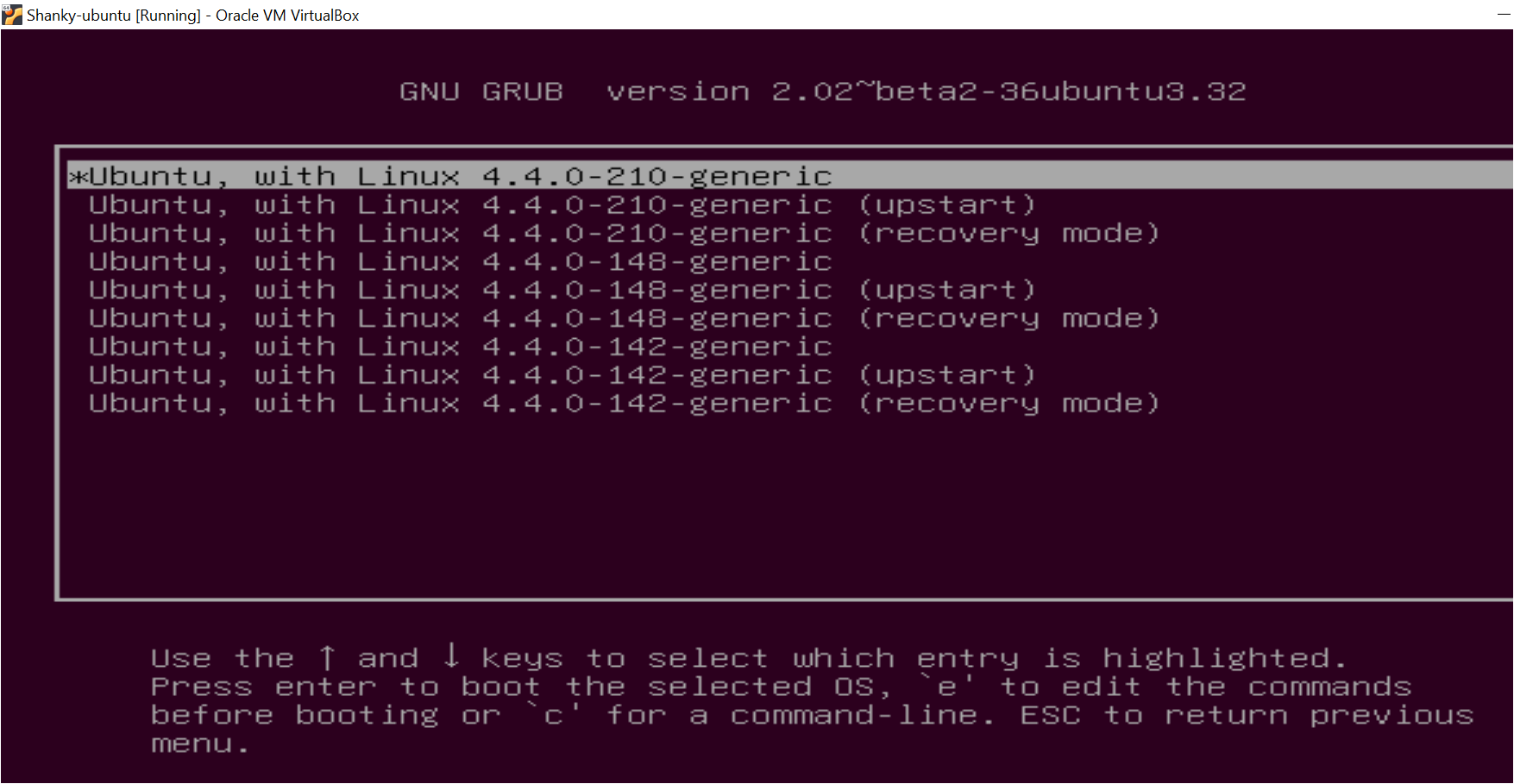
GRUB (Grand Unified Bootloader) is responsible for loading the Linux kernel during system startup. By editing the GRUB configuration, you can specify kernel boot parameters that influence hardware initialization, including disabling specific GPUs.
Steps to Disable GPU in GRUB on Ubuntu 24.04
- Open Terminal: Start by opening a terminal window. You can do this by pressing
Ctrl + Alt + T. - Edit the GRUB Configuration File:
- Use a text editor with root privileges to edit the
/etc/default/grubfile. For example, you can usenano:bash sudo nano /etc/default/grub
- Use a text editor with root privileges to edit the
- Modify Kernel Parameters:
- Locate the line starting with
GRUB_CMDLINE_LINUX_DEFAULT. This line contains default kernel parameters. - To disable a specific GPU, such as an NVIDIA GPU, you can add parameters like
nouveau.modeset=0for Nouveau drivers ornvidia-drm.modeset=0for proprietary NVIDIA drivers. For AMD GPUs, useradeon.dpm=0. - Example modification:
plaintext GRUB_CMDLINE_LINUX_DEFAULT="quiet splash nouveau.modeset=0" - If you need to disable integrated graphics (e.g., Intel), add parameters like
i915.enable_rc6=0ori915.modeset=0.
- Locate the line starting with
- Update GRUB:
- After editing the file, save your changes and exit the text editor (
Ctrl + X, thenY, andEnterin nano). - Update the GRUB configuration to apply the changes:
bash sudo update-grub
- After editing the file, save your changes and exit the text editor (
- Reboot Your System:
- Restart your computer to see the changes take effect:
bash sudo reboot
- Restart your computer to see the changes take effect:
Re-enabling the GPU
If you need to re-enable the GPU, simply reverse the process:
- Open the terminal and edit
/etc/default/grubagain. - Remove or comment out the specific kernel parameters added for disabling the GPU (e.g.,
nouveau.modeset=0). - Update GRUB with
sudo update-grub. - Reboot your system.
Additional Considerations
- Backup Configuration: Before making changes, consider backing up your current GRUB configuration file:
bash sudo cp /etc/default/grub /etc/default/grub.bak - Testing Changes: If unsure about the parameters to use, consult documentation specific to your GPU model or seek advice from community forums.
- Compatibility Issues: Disabling a GPU might lead to loss of display output if no other graphics solution is available. Ensure you have an alternative method to access your system (e.g., remote desktop) before proceeding.
By following these steps, you can effectively manage GPU initialization during boot on Ubuntu 24.04 using GRUB configuration adjustments. This approach provides a flexible way to troubleshoot and optimize hardware performance as needed.
Related
What are the specific kernel parameters for disabling different types of GPUs in Ubuntu?
How do I back up my current GRUB configuration before making changes on Ubuntu 24.04?
Can you explain how to re-enable a GPU after it has been disabled through GRUB on Ubuntu?
What alternative methods can be used to access the system if display output is lost after disabling a GPU?
Are there any potential risks or compatibility issues when disabling a GPU via GRUB on Ubuntu 24.04?